


DefenderShield
EMF Radiation-Free Air Tube Over-Ear Headphones with Built-In Mic and Full-Range Stereo Sound
Regular price
$204.99 USD
Regular price
Sale price
$204.99 USD
Unit price
per
In stock
Shipping calculated at checkout.
Good to know
Choose 3.5mm for universal compatibility or USB-C for iPhone 15 and newer, modern Androids, and laptops with USB-C audio and microphone access (check settings). iPhone 14 and older users should select the 3.5mm model and use with a Lightning adapter.
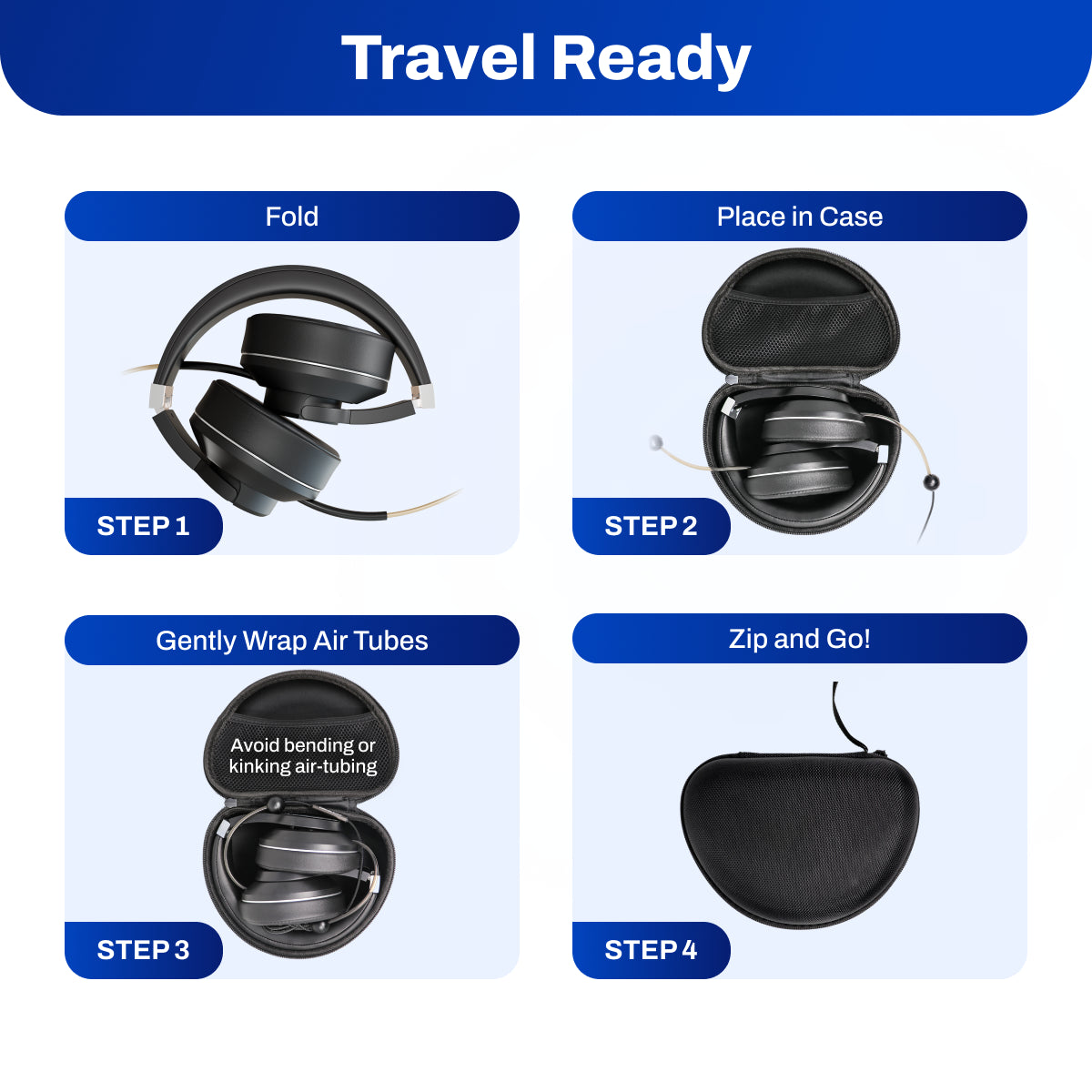
If the headband feels firm at first, gently stretch it over a stack of books slightly wider than your head for 24 hours — this eases tension without damaging the band. When storing, fold the headphones flat and place in the included zipper carry case following the folding instructions to protect the air tubes from kinking. Detailed adapter and compatibility advice can be found in the "Troubleshooting" tab below.




- Description
- Features
- How to Use
- Specifications
- Video
- Troubleshooting
Description
Zero RF at the Ear and ELF Cord Shielding for Extended Listening
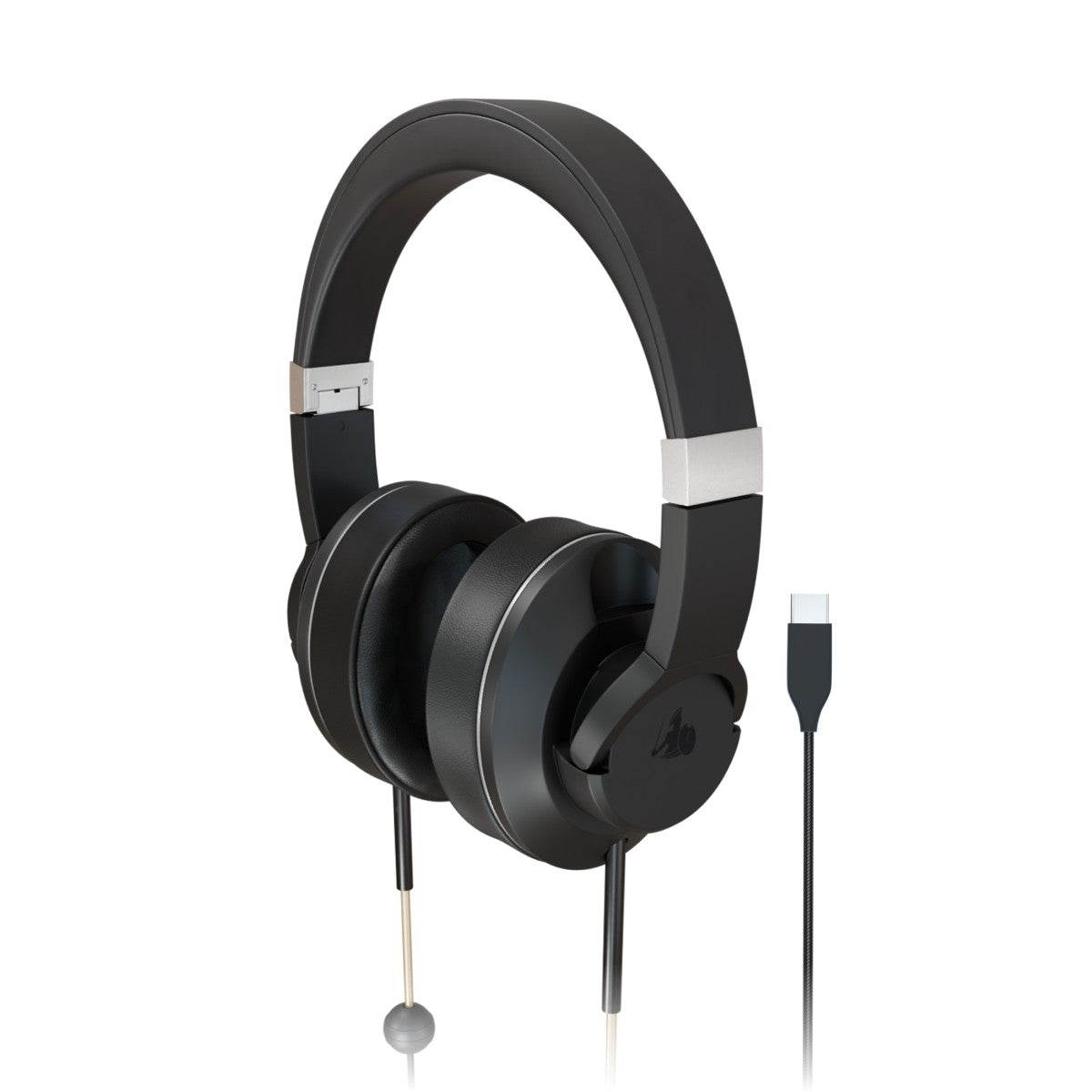
DefenderShield® Air Tube Over-Ear Headphones are designed for those who want EMF-free audio without giving up the comfort of a full-size headset. Aluminum drivers are designed to eliminate RF frequencies at the source, paired with a 5-inch hollow air tube that routes only acoustic waves — no electrical current, no electromagnetic field — to your ears. The drivers sit inside a sealed chamber at the bottom of the 42.5-inch cord, converting the electrical signal into sound before it enters the tube. No Bluetooth transmitter, no battery, and no wireless signal is present near your head at any point during use.
The braided nylon cord is infused with copper to help reduce the Extremely Low Frequency (ELF) radiation that the audio signal wire would otherwise emit toward your body — the shielding step most wired headphones skip entirely.
Protected under Patent License #6453044. EMF shielding performance verified through FCC-accredited lab testing.
What sets this model apart is that the EMF-conscious design does not come at the expense of sound. In EMF Academy’s 2026 roundup, the reviewer said DefenderShield delivers “much higher fidelity sound than just about any other pair on the market” and noted that our headphones “worked specifically with audio engineering specialists to produce the highest quality acoustic audio” while preserving the benefits of air tube technology.
Plush Over-Ear Comfort Built for Longer Sessions
Unlike our in-ear model designed for movement and all-day portability, DefenderShield® Air Tube Over-Ear Headphones are built for extended, more stationary listening — ideal for desk work, work-from-home calls, studying, and focused audio sessions. The plush over-ear cushioned cups fully surround the ears for a soft, pressure-balanced fit, while also creating a passive sound seal that helps reduce outside noise without any active electronics.
The adjustable headband fits a wide range of head sizes, and the ear cups rotate vertically and swivel horizontally to better match the natural shape of the head. Because the weight is distributed across the top of the head rather than inside the ear canal, the over-ear form is especially well-suited to wearing for an hour or more at a time.
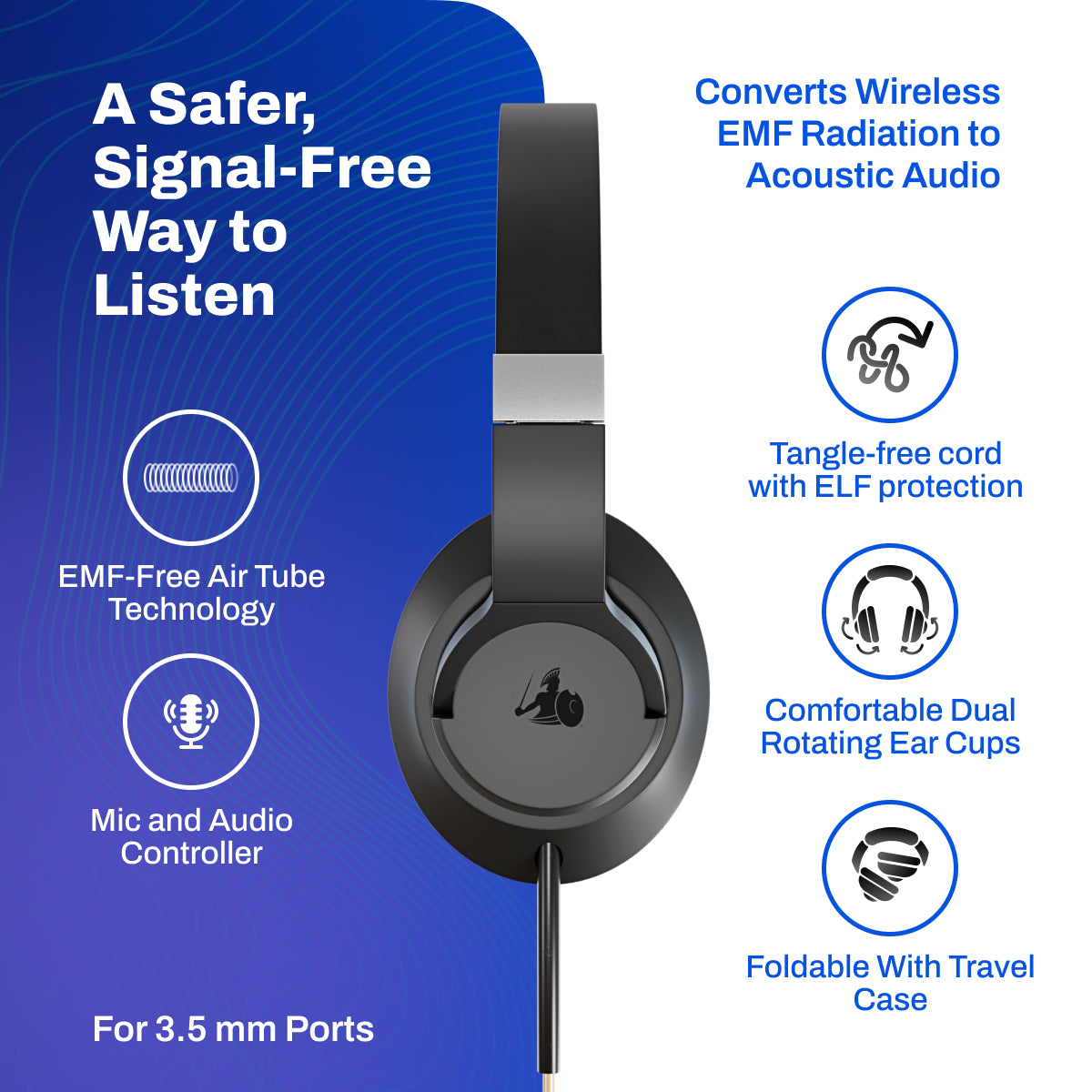
An integrated microphone and inline controller let you manage volume, play/pause, track skip, and call answer/end directly from the cord below the air tubes. When finished, the headphones fold flat into the included protective zipper carry case for easy storage.
Available in 3.5mm for broad device compatibility and USB-C for newer devices, including iPhone 15 and newer, Google Pixel, and newer Samsung models.
Features
Air Tube Technology
A 5-inch hollow air tube keeps the speakers farther from your head, so only sound waves travel the final stretch to your ears. This design helps reduce near-ear exposure compared with ELF-emitting standard headphones or RF- and ELF-emitting wireless headphones.
Built-In Microphone & Full Audio Controls
Answer calls, adjust volume, play or pause audio, and skip tracks directly from the cord-mounted controls. Unlike many air tube headphones, DefenderShield includes a built-in microphone for added everyday convenience.
Aluminum Speakers That Eliminate RF Frequencies
The aluminum speakers are designed to eliminate RF frequencies at the source — before sound enters the air tube. This adds a hardware-level shielding step that standard wired and wireless headphones do not include.
Copper-Infused ELF Cord Shielding
The braided nylon cord is infused with copper to help reduce ELF exposure along the wire during use. This adds an extra layer of protection-focused design beyond the air tube itself.
Zero Bluetooth — Zero RF at the Ear
No Bluetooth, no battery, and no wireless transmitter of any kind. This fully wired design removes the continuous Bluetooth signal that wireless over-ear headphones place beside your head for hours during extended listening sessions.
Plush Over-Ear Comfort with Adjustable Fit
Plush padded ear cushions fully enclose the ear for a comfortable seal and passive sound isolation without electronics. The adjustable headband accommodates a wide range of head sizes; cups rotate vertically and swivel horizontally for a custom fit. Folds flat for storage in the included protective zipper carry case.
How to Use
Getting Set Up
Choose the version that matches your device:
- 3.5mm for the widest compatibility, or USB-C for newer supported laptops, tablets, and smartphones such as iPhone 15+, Samsung S20+, and newer Android models. If a device has both ports, the 3.5mm is more likely to support audio and microphone connections. Make sure the 3.5mm port is a TRRS / 4-pole port for full sound and mic functionality.
- For devices with a USB-C port, check device settings to ensure it is an audio and microphone-enabled analog USB-C port. Many are just charging ports or audio-output only.
If you have an iPhone 14 or older, choose the 3.5mm version and use a Lightning-to-3.5mm adapter that supports TRRS / 4-pole headset connections. Apple's Headphone Jack Adapter works correctly. Many generic or TRS / 3-pole adapters support audio only, so the microphone and inline controls may not work.
Place the headphones on your head with the "R" and "L" markings on the correct ears. Adjust the headband sliders so the weight rests lightly on the crown of your head rather than pressing on your ears. Use the vertical tilt and horizontal swivel to center the cups over your ears, ensuring the full cushion encloses the ear rather than resting on it.
Plug the cord into your device and set the volume below 65 dB before putting the headphones on. Start low and raise gradually to a comfortable level.
Fitting and Comfort
Adjust the headband sliders so the band rests on the crown of your head — not on top of your ears.
- If the band is too long, the cups may sag and lose their passive seal.
- If it is too short, the headband may press into your skull and cause fatigue during extended sessions.
Make sure your entire ear sits inside the cushion cavity. If the padding rests on your ear cartilage instead of around it, discomfort may develop during longer sessions.
If the clamping pressure feels too firm after initial wear, gently stretch the headband over a stack of books slightly wider than your head for about 24 hours to ease the tension. This is normal for new over-ear headphones and does not affect shielding performance.
If you wear glasses, check that the frames do not lift the ear cushion away from your head. A broken seal can reduce both comfort and passive sound isolation.
For Maximum EMF Reduction
- Use the inline controls to manage calls instead of picking up your phone. Keeping the device in a bag or on a desk during calls adds meaningful distance from your body.
- During longer listening sessions, place your phone on a desk or in a drawer. The 42.5-inch cord provides enough reach for comfortable use without needing to hold the device.
- For more complete protection during phone calls, pair with a our EMF blocking phone case. This helps reduce exposure at both major contact points during calls.

Storage and Care Instructions
Fold the headphones flat before placing them in the included protective zipper carry case. Follow the folding instructions inside the case to avoid kinking the air tubes.
Avoid bending or kinking the air tubes. Kinked tubes can reduce audio volume and may prevent sound from reaching the headset. If a kink develops, gently straighten the tube before use.

To clean:
- Wipe the ear cushions with a soft, damp cloth after use.
- Clean the cord with a dry microfiber cloth — do not submerge in liquid.
- Do not use alcohol on the ear cushions — this can dry out and crack the padding over time.
Specifications
Physical Specifications
|
Attribute |
Value |
|---|---|
|
Weight |
0.81 lb (367 g) — both variants |
|
Dimensions |
8 × 7.25 × 3.5 in (203 × 184 × 89 mm) |
|
Cord Length |
42.5 in (108 cm) — plug to speaker housing |
|
Air Tube Length |
5 in (12.7 cm) — speaker housing to headset |
|
Connector — 3.5mm |
3.5mm TRRS / 4-pole — audio + microphone + inline controls on compatible ports and adapters |
|
Connector — USB-C |
Analog USB-C audio with microphone on compatible devices |
|
Headband |
Adjustable — fits a range of head sizes |
|
Ear Cups |
Plush over-ear cushions — full ear enclosure |
|
Cup Movement |
Vertical tilt + horizontal swivel |
|
Foldable |
Yes — folds flat for storage |
|
Carrying Case |
Protective zipper case — included |
|
Patent |
#6453044 — hollow acoustic tube audio delivery mechanism |
EMF and Audio Design Specifications
|
Attribute |
Value |
|---|---|
|
Wireless RF and ELF at Ear |
No Bluetooth transmitter — fully wired design eliminates wireless RF near the head during use; speaker located below air tube prevents ELF from reaching the head |
|
Air-Tube Delivery |
Hollow air tubes carry sound to the ear instead of traditional wired speaker placement at the ear |
|
Speaker Material |
Aluminum speakers |
|
Cord Shielding |
Copper-infused braided nylon cord — for added protection from Extremely Low Frequency (ELF) radiation |
|
Battery Required |
None — fully wired, no independent power draw |
|
Controls |
Built-in hands-free microphone with inline audio controls (volume, play/pause, track skip, call answer/end) |
|
Storage Note |
Avoid bending or kinking the air tubes — kinks may reduce or block sound transmission to the headset |
Compatibility — 3.5mm Version
|
Attribute |
Value |
|---|---|
|
Best fit |
Any device with a true 3.5mm TRRS / 4-pole headset jack (if a device has both ports, go with the 3.5mm) |
|
iPhone 14 and older |
Use the 3.5mm version with a Lightning-to-3.5mm adapter that supports headset + microphone (TRRS / 4-pole) |
|
iPhone 15 and newer |
USB-C version recommended — see USB-C compatibility table below |
|
Adapter rule |
TRRS (4-pole) = audio + mic + controls. TRS (3-pole) = audio only — mic and controls will not work |
|
USB-C or Lightning adapters for 3.5mm port |
Adapter must support TRRS / 4-pole and include a DAC — cheap pass-through adapters may not carry microphone or controls |
|
TRS-only ports |
Audio may work; microphone and inline controls may not — this is a device limitation, not a headphone defect |
PLEASE NOTE: iPhone 7 models and newer require a lightning cord adapter for compatibility with the DefenderShield Headphones.
Compatibility — USB-C Version
|
Status |
Devices |
|---|---|
|
Likely compatible |
Samsung Galaxy S20 and newer · Newer iPad Pro / iPad Air with analog USB-C audio · Some Chromebooks and Windows laptops that support analog USB-C audio · iPhone 15 and newer — consistent in DefenderShield's own testing; Apple does not explicitly state analog USB-C headset support |
|
Likely incompatible or partial function |
Samsung Galaxy Z Fold · Motorola Razr · OnePlus Nord series · Android phones with both 3.5mm and USB-C that don't support USB-C audio (e.g. Moto G Stylus 5G) · Most Windows laptops without analog USB-C audio · Nintendo Switch — audio may work, mic may not |
|
Avoid |
USB-C hubs · Multi-port adapters · Charging-only adapters · Docking stations · USB-C extenders — plug directly into the device for best results |
Video
Watch the full product demo — see how DefenderShield Air Tube Over-Ear Headphones deliver sound through hollow air tubes, include a built-in mic and inline controls, and help reduce near-ear RF exposure without Bluetooth.
Troubleshooting
If your earbuds aren’t working, often the earbuds are not defective but the device, port, or adapter you are using. Even if the port looks correct, it may not be compatible.
Follow the guide below to ensure your earbuds are functioning properly.
Our Top Tips:
-
Adapters complicate compatibility. Direct connections are the most stable.
-
If devices have multiple port options, the 3.5mm earbuds have the most universal audio and mic connection.
-
For devices with unsupported ports (regular USB, Lightning) it is better to use the 3.5mm earbuds with an adapter, than to use USB-C earbuds with an adapter.
-
The earbuds should work on most devices (with the correct adapter if needed) for audio connections, while the mic and controls may be less universally compatible.
3.5mm Headphones Information
Compatibility
Device port AND adapter (if used) needs to be a TRRS (4-pole) connection.
Our 3.5mm headphones include a microphone, which requires a TRRS (4-pole) connection.
- TRRS (4-pole) → audio + mic + controls
- TRS (3-pole) → audio only (mic and controls will not work)
-
Always use adapters labeled TRRS, 4-pole, or “supports headset/mic”.
- Make sure there are 3 lines on the ring of the jack, otherwise, the microphone and controls may not work.
- Cheap or generic adapters are often just for charging (audio and microphone/controls won’t work) or audio (microphone or controls won’t work).
- Adapters that may not fully work:
- Cheap “pass-through” adapters (no DAC)
- Plane/dual-prong adapters
- Splitters not rated for TRRS
- Many Amazon Basics or generic adapters
- Confirm your device supports TRRS (4-pole) 3.5mm jacks for audio and mic (input and output).
- Common devices with TRS-only jacks (may not fully work):
- Desktops and some laptops
- Older computers with separate headphone + mic jacks
- Handheld gaming devices
- Cameras with separate headphones + mic jacks
- Any device that requires a USB-C or Lightning connection without an active, MFi/USB DAC adapter
- Check device input/audio settings to select the external headset/mic.
-
Test the headphones on a different device (or 2) to confirm they function.
-
Refer to your device manual or manufacturer website for “headset with mic” support.
How do I fix an unsupported adapter or port?
Devices with a TRS-only port cannot be changed to recognize and support mic input. Our headphones should work for audio, but without full mic/controls functionality.
You can purchase a 4-pole TRRS 3.5mm adapter, just make sure it says “supports headphone and mic”.
Typical Problems & Fixes:
Audio works but microphone doesn’t:
-
Likely wrong adapter (TRS instead of TRRS) → use TRRS/4-pole adapter. It must include a DAC if adapting to USB-C or Lightning (cheap pass-through adapters won’t work).
-
Device not selecting external mic → check audio/input settings.
-
App may be blocking external mic → test in a native voice recorder app.
-
Plug not fully seated → push until it clicks, remove case if blocking.
-
Device port is audio-only → check device settings, or test the headphones on a few different devices. If it works on other devices, the port likely only supports audio.
Inline controls (play/volume/skip) don’t work:
-
Some devices ignore analog controls → this is a device limitation — the headphones themselves are fine.
-
Adapter may not support inline signals → test in a device without an adapter and if it works, get an adapter that supports inline signals.
-
Your device’s media volume may already be at maximum or minimum → check native device volume control.
-
On some devices, the inline volume buttons control media volume, not call volume — try playing music or a video while adjusting.
-
When using with music apps, some devices require the media app to be active first before the headphones’ inline controls can send commands → Hit Play directly on the device. After the audio starts, the earbuds’ buttons should work as expected.
-
The control buttons may be stuck or jammed → press each button a few times in different spots with varying pressure. Try a longer, firmer press and release. If it still doesn’t work, gently clean around the buttons with a dry brush/cotton swab to remove dust or debris.
Static, low volume, or one side cutting out:
-
Straighten kinked air tubes.
-
Clean debris from the port.
-
Check Accessibility → Disable Mono Audio to restore normal stereo output.
-
Reset EQ or audio effects.
-
Re-seat the plug firmly and make sure a case isn’t getting in the way.
-
Turn off Bluetooth to ensure audio isn’t being routed wirelessly.
-
Adapter or device issue: Try using it in a different device that doesn’t need an adapter (it may be a faulty adapter connection). Or, try a different device WITH the adapter. If it exhibits the same problem, the adapter is the issue.
Headphones don't fit correctly on ears:
- Master the "Crown Rule": Adjust the headband sliders so the weight rests lightly on the top of your head. If the band is too long, the cups will sag and pull on your ears; if it's too short, it’ll feel like a heavy weight on your skull.
- Leverage the Dual-Rotation: Use the vertical tilt to hug your jawline and the horizontal swivel to wrap around the back of your ears. If you feel "air" anywhere, the cups aren't centered to your unique head shape.
- Fix the "Vice-Grip": If the clamping force is too intense, stretch the headphones over a stack of books slightly wider than your head for 24 hours to relax the tension.
- Check Your Ears: Ensure your entire ear is inside the cushion cavity. If the padding sits on top of your ear cartilage, it will cause "ear fatigue" and soreness within an hour.
- Manage Obstructions: Move hair out of the way and check if your glasses are lifting the pads. A broken seal usually means less comfort and worse sound.
USB-C Earbuds Information
Make sure your device port supports analog USB-C audio (adapter not recommended).
There are different types of USB‑C headphones/adapters:
-
Active: Has its own internal DAC (digital to analog converter) + amp. It expects digital audio from the device.
-
Passive / “Accessory Mode”: Relies on the device to output analog audio through USB‑C just like a 3.5 mm jack would.
Our USB-C Air Tube headphones use analog audio signaling with a microphone, meaning it works with devices that support analog audio input. That means the device has a DAC to convert the audio from analog to digital.
Every device manufacturer handles analog USB‑C differently — some support it fully, some partially (audio yes, mic no), and some not at all. Apple does not explicitly state analog USB-C headset compatibility with its newer USB-C iPhones, but our own testing has shown consistent functionality with the DefenderShield USB-C headphones.
Key Note: Analog USB‑C headphones work best directly plugged into a device that supports analog USB‑C audio. Mic and inline controls may not function on partially compatible devices, or when using an adapter.
How to check compatibility:
Confirm your device supports analog USB-C audio/microphone.
-
Likely compatible devices:
-
Samsung Galaxy S20 and newer
-
Newer iPad Pro / iPad Air with analog USB‑C audio
-
Some Chromebooks or Windows laptops that support analog USB‑C audio
-
iPhone 15 and newer (*doesn’t explicitly state analog USB-C support)
-
Likely incompatible or partial function:
-
Android phones with a 3.5mm and USB-C port (Moto G Stylus 5G) don’t support any USB-C audio
-
Samsung Galaxy Z Fold
-
Motorola Razr
-
OnePlus Nord series
-
Most Windows laptops without analog USB‑C audio
-
Nintendo Switch (audio may work; mic may not)
-
USB-C hubs, multi-port adapters, charging-only adapters, or extenders
-
Test on another known compatible device to confirm functionality.
-
Refer to your device manual or manufacturer website for “USB-C analog audio” or “headset with mic” support.
Adapters / Hubs:
-
Plug directly into the device for the best results.
-
Avoid multi-port USB-C hubs, charging-only adapters, docking stations, car USB ports, or USB-C extenders.
-
Lightning to USB-C requires an adapter that is labeled "Charging and Audio" or "Data Transfer" to support full functionality.
How do I fix an unsupported adapter or port?
If the device has an audio and mic compatible port (3.5mm, Apple Lightning), purchase an adapter that converts to USB-C analog audio with microphone. Depending on the adapter, there may still be issues with mic and inline controls.
Devices that do not support analog USB-C with mic input cannot be changed to recognize the earbuds, and there is not an adapter that will convert USB-C analog audio headphones to digital. Headphones may be audio-only.
Typical Problems & Fixes
Audio works but microphone doesn’t:
-
Device may not support analog USB-C mic → check audio/input settings.
-
Android: Settings → Sound → Input → select “Headset Microphone”
-
App may be blocking external mic → test in a native voice recorder app.
-
Plug not fully seated → push until it clicks, remove case if blocking.
-
Test on a different compatible device → if it works elsewhere, your device likely does not support analog USB-C mic input.
Inline controls (play/volume/skip) don’t work:
- Many devices only support digital USB-C commands, so analog controls may not function → this is a device limitation — the headphones themselves are fine.
- Adapter may not support inline signals → test in a device without an adapter and if it works, get an adapter that supports inline signals if possible or try to use without an adapter.
-
Your device’s media volume may already be at maximum or minimum → check native device volume control.
-
On some devices, the inline volume buttons control media volume, not call volume — try playing music or a video while adjusting.
-
When using with music apps, some devices require the media app to be active first before the earbuds’ inline controls can send commands → Hit Play directly on the device. After the audio starts, the headphones’ buttons should work as expected.
-
The control buttons may be stuck or jammed → press each button a few times in different spots with varying pressure. Try a longer, firmer press and release. If it still doesn’t work, gently clean around the buttons with a dry brush/cotton swab to remove dust or debris.
Static, low volume, or one side cutting out:
-
Straighten kinked air tubes.
-
Clean debris from the port.
-
Check Accessibility → Disable Mono Audio to restore normal stereo output.
-
Reset EQ or audio effects.
-
Re-seat the plug firmly and make sure a case isn’t getting in the way.
-
Turn off Bluetooth to ensure audio isn’t being routed wirelessly.
-
Adapter or device issue: Try using it in a different device that doesn’t need an adapter (it may be a faulty adapter connection). Or, try a different device WITH the adapter. If it exhibits the same problem, the adapter is the issue.
Headphones don't fit correctly on ears:
- Master the "Crown Rule": Adjust the headband sliders so the weight rests lightly on the top of your head. If the band is too long, the cups will sag and pull on your ears; if it's too short, it’ll feel like a heavy weight on your skull.
- Leverage the Dual-Rotation: Use the vertical tilt to hug your jawline and the horizontal swivel to wrap around the back of your ears. If you feel "air" anywhere, the cups aren't centered to your unique head shape.
- Fix the "Vice-Grip": If the clamping force is too intense, stretch the headphones over a stack of books slightly wider than your head for 24 hours to relax the tension.
- Check Your Ears: Ensure your entire ear is inside the cushion cavity. If the padding sits on top of your ear cartilage, it will cause "ear fatigue" and soreness within an hour.
- Manage Obstructions: Move hair out of the way and check if your glasses are lifting the pads. A broken seal usually means less comfort and worse sound.
COMPARE OPTIONS
DefenderShield Air Tube Over-Ear Headphones vs. Alternatives
A concise comparison to help shoppers choose the right option for their device, listening style, and exposure priorities.
| Feature | DefenderShield Air Tube Over-Ear Headphones | Bluetooth Over-Ear (Sony, Bose, Apple) Headphones | Standard Wired Over-Ear Headphones |
|---|---|---|---|
| RF and ELF at ear | Zero — no transmitter, no driver by ear/head | Constant Bluetooth transmitter beside the head, ELF-emitting driver by ear/head | Low — no transmitter; ELF-emitting driver by ear/head |
| ELF cord shielding | Copper-infused braided cord | N/A — battery powered, no cord EMF | No shielding — standard wire |
| Fit type | Over-ear cushioned cups — full ear enclosure | Over-ear or on-ear — driver at/near ear | Over-ear or on-ear — driver at/near ear |
| Speaker design | Aluminum speakers + 5 inch air tube — no direct contact with ear | Driver in cup, 1–5 mm from ear canal | Driver in cup, 1–5 mm from ear canal |
| Passive sound isolation | High — full ear cup seal | High (+ ANC available) | Moderate to high — cup design varies |
| Active noise cancellation (ANC) | Passive only — ANC generates EMF | ANC — creates additional EMF during use | Passive only |
| Battery required | None — fully wired | Daily charging required | None — fully wired |
| Built-in microphone | Yes — inline controls | Yes | Usually yes — varies by model |
| Foldable + carry case | Folds flat; zipper case included | Usually yes | Varies by model |
| Warranty | 1-year manufacturer | 1-year (most brands) | Varies — 1 year common |
| Returns | 30-day window — full refund if unused | Varies by retailer | Varies by retailer |
| Price | $195.99 | $329–$549 | $99–$299 |
OVER-EAR VS. EARBUDS — WHICH SHOULD I CHOOSE?
Both models share the same EMF protection technology. The difference is form factor, use case, and price.
| EMF Radiation-Free Air Tube Over-Ear Headphones | EMF Radiation-Free Air Tube Earbuds | |
|---|---|---|
| Choose if you… | Listen at a desk, work from home, want deeper sound isolation for extended sessions, or have trouble keeping in-ear earbuds secure | Commute, exercise, or want a lightweight all-day in-pocket companion |
| Primary use case | Long calls, focused listening, WFH, home studio | On-the-go, workouts, commuting, everyday carry |
| Fit | Plush over-ear cushioned cups — full ear enclosure | In-ear silicone tips — lightweight seal |
| Weight | 0.81 lb — wear at a desk, not on a run | 0.056 lb — barely noticeable |
| Passive isolation | Higher — full ear cup seal | Moderate — in-ear tip seal |
| Storage | Folds flat, zipper carry case | Hard shell carry case, cord clips for active use |
A
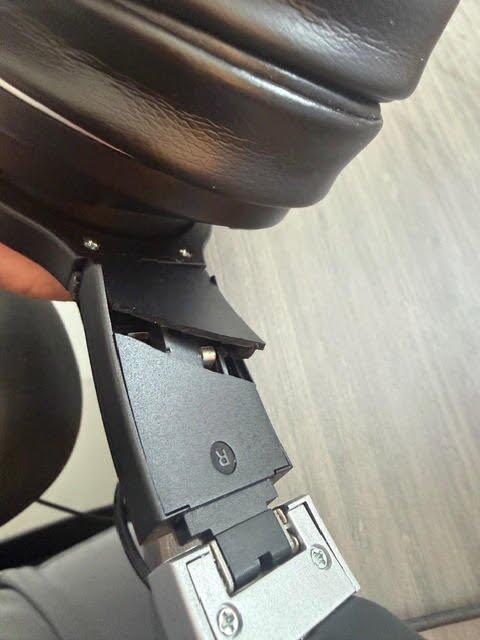
On my second pair of the over ear headphones in four years, the first having 'worn out' after two years, on which the headpiece struts have quite simply 'fallen apart' after not even two years of intermittent use.
I was offered a 20% 'courtesy' discount on a new pair which does not seem reasonably substantive enough on a premium product that does not last two years. The one year warranty is clearly just that and I would advise anyone that buys these products to be careful about making sure you check for defects within that period.
I didn't fair much better with the in-ear product either so for me it's the end of road with these products. The price paid is not supported by the quality of the products and that seemingly is OK with the company.
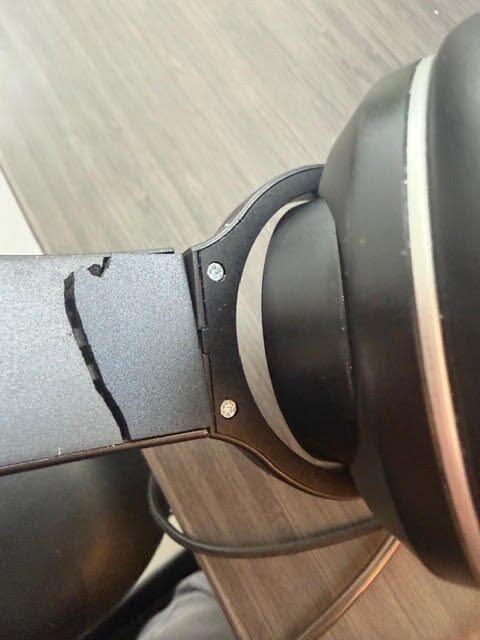
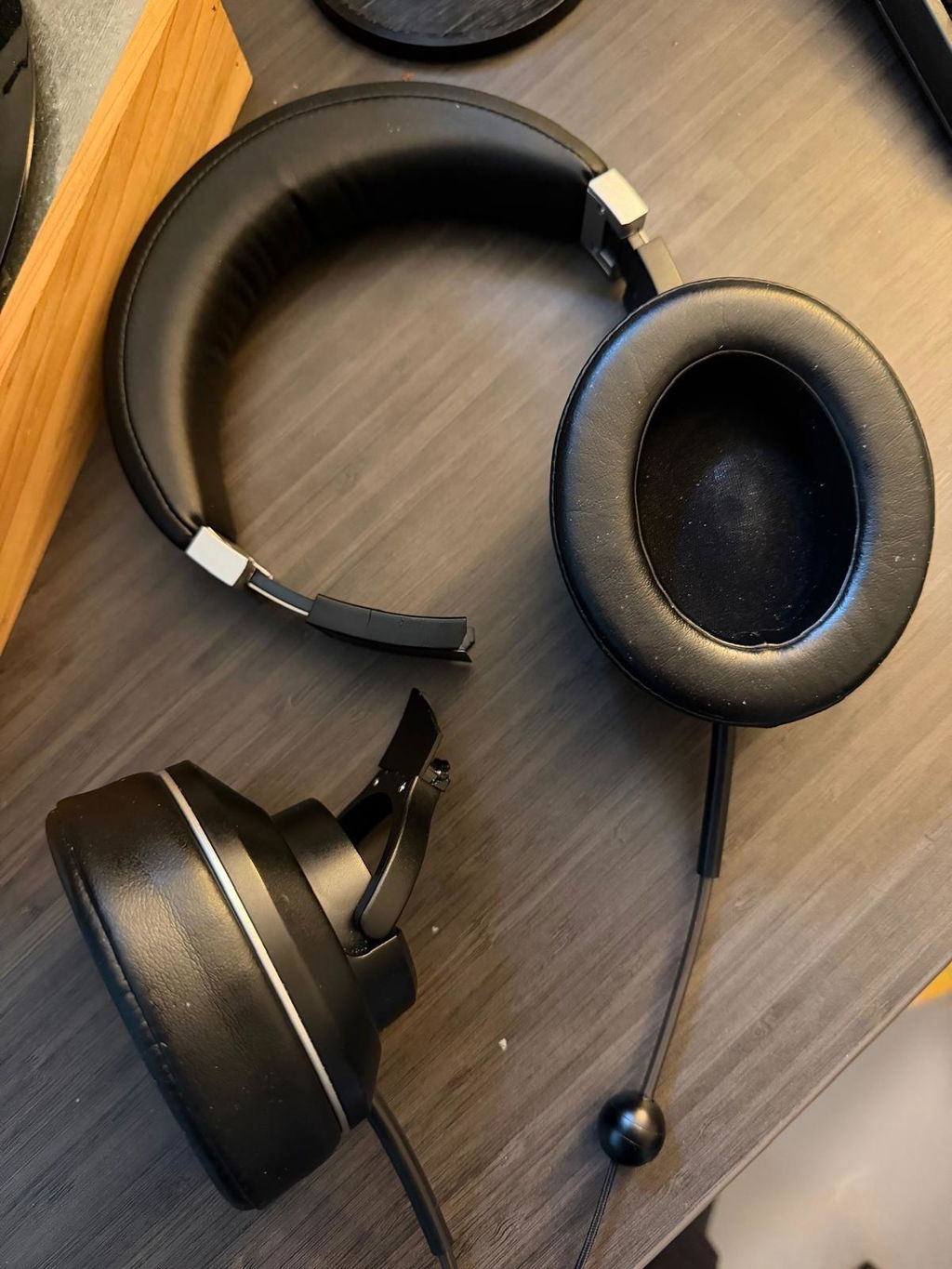
Hi there, thank you for sharing your feedback. We're sorry to hear about the issues you've experienced with our headphones. We appreciate your input and will use it to improve our products. If there's anything specific we can do to assist you further, please reach out to our support team. We value your satisfaction.
L
I purchased in April of 2025. Now 18 months later the left side is not working. I only use these to meditate and they hardly ever leave my meditation room. Very bummed. And I thought I paid for extended warranty but only a year. I will ship back anyways because I don’t want them in the LANDFILL!
Very disappointed.
Hi Lisa, we're sorry to hear about the issue with your headphones. Please contact our customer service so we can assist you with a solution. We appreciate your effort to recycle them instead of disposing of them. Thank you for your feedback.
R
These headphones are great. Zero issues and smooth sound. Great quality. The ear bud headphones did not work out for me but these ones are solid, well done. Thank you!
Hi Rowan, we're so glad you're happy with the headphones! Thanks for sharing your experience and for choosing DefenderShield.
D
Nice sound and noise canceling too! Love my earphones.
Hi Darlene, we're so glad you're enjoying the sound quality! Thanks for sharing your positive experience.
J
I love these headphones! They’re very comfortable, block outside noise well and most of all, I love their EMF protection. I’ve needed to ask the company a couple EMF questions and they’ve always answered immediately with clear, friendly solutions. I highly recommend Defender Shield!
S
Hideous, cheap look and over sized. If you have a small, feminine head stay away from these.
S
Got these as a christmas present. So far they have been great! A little too tight on the ears to wear glasses with, but thats probably what the earbud style is for :)
P
Headphones work very well. Sound quality is good. Well built product. I am enjoying air tube sound over digital, seems like less static/background noise coming through speakers.
T
Quiet sound
M
Very good. Excellent
A
Got broken after a day of use
Hi Aleksei,
We are sorry to hear about the issues you are experiencing.
In this situation, we suggest you explore our generous 1 Year Warranty policy. You can find that here https://defendershield.com/pages/warranty
We hope this helps.
Best Wishes,
The DefenderShield Team
M
Exactly what I needed. Something that doesn't go into my ears, is comfortable, EMF safe, and works well. Thank you!
W
The headphones have a high quality. Health has its price. No electrical field direct at your head
M
Amazing! I love them!
T
I do love these earphones and love knowing they're safe. My only issue is that they don't last long. Multiple times, one ear has stopped working. I keep re-ordering, and the same thing happens--and they are not inexpensive! There is a guarantee, which I have nearly worn out. The company is very nice and prompt about sending a replacement. But it's only good for one time. The last time I bought a set, it stopped working shortly after purchased--as in a few months. Then the replacement set stopped working--one ear only always. But the guarantee had already been used on the original pair, and they're too expensive to buy several times a year, so I'm doing without right now. May rob a bank and stockpile some!
Hi Terri,
Thank you so much for being such a loyal fan of our earphones! We are truly happy to hear how much you enjoy using them and that you value the safety features we’ve built into the design. Knowing that our customers feel secure using our products is exactly what we strive for.
It is also incredibly helpful to hear your honest feedback regarding the lifespan of your previous sets. We aim to create products that are as durable as they are safe, and hearing about your specific experience with one side cutting out provides our team with important insight as we work to improve our quality and longevity.
We are glad our team has been able to assist you with replacements in the past, and we genuinely appreciate your continued support of our brand. Thank you for sharing your experience with us.
Best Wishes,
The DefenderShield Team
G
Sounds great, good quality
Hi Greg,
Thank you for your review!
We are so happy you are enjoying your headphones and the quality they provide!
We appreciate your support!
Best Wishes,
The DefenderShield Team
A
I haven’t been able to wear headphones for over a decade. I haven’t wanted to expose my brain to the extra EMF. I’m so glad defender shield created these!!!
Hi Alicia,
Thank you for taking the time to leave your review.
We're happy you are enjoying your products and you are noticing a difference while using them!
Best Wishes,
The DefenderShield Team
F
Very positive overall - lovely headset and the case is solid to protect them. The sound is amazing - what's not to love?
Hi Fiona,
Thank you for taking the time to leave your review.
We're happy you are enjoying your products and you are noticing a difference while using them!
Best Wishes,
The DefenderShield Team
T
So nice to know that radiation is NOT going straight into my brain!
That's the best compliment we can get! We're so happy you have that peace of mind knowing your brain is protected while you use the Over-Ear Headphones. Thank you for your review!
P
Confy in use but al little to plastic. Looks nice. High tones are flattened. I had to adjust my equilizer, but after that it sounded great :-) Most important , i had no feeling of pressure in my head.
Hi Paul,
Thank you for your review!
We are glad to hear you are enjoying your products and the protection it provides!
Best,
The DefenderShield Team
S
It was great. Thank you...
Hi Scott,
Thank you for your review!
We are glad to hear you are enjoying your products and the protection it provides!
Best,
The DefenderShield Team
M
They are comfortable and very useful.
C
I truly enjoy these headphone. I use them everyday at work for all my online meetings
Hi Christina,
Thank you for your review!
We are so happy to hear you are enjoying your headphones and the protection they provide while you take meetings!
We appreciate your support!
Best Wishes,
The DefenderShield Team
S
I love these headphones. As someone who is very electrosensitive, I really feel the difference with these headphones and they've cut down a lot on my headaches. I work on the computer and use these for my calls, and it has helped my staying power throughout my calls. But what really sold me was after a couple months, one side stopped working. I reached out to the company and they sent me a new one free of charge because it was in the first year after purchase. I appreciated the customer service so much!
Hi Sarah,
Thank you so much for this incredible review! We're thrilled to hear that our headphones have made such a positive difference for you, especially with reducing headaches and helping you with long work calls.
Providing excellent customer service is a top priority for us, and we're so glad we could help when one side stopped working. Your feedback means a lot to our team and truly reinforces why we do what we do. We hope you continue to enjoy your headphones!
We appreciate your support!
Best Wishes,
The DefenderShield Team
S
It was great. We got it in 5 days!
Hi Scott,
Thank you for your review!
We are glad to hear you're enjoying your EMF free headphones, and the quick shipping time!
We appreciate your support!
The DefenderShield Team
P
I really wanted to like these radiation-free headphones. The first (and last) time I used them they were so big and heavy, I got a headache after 20 minutes of use. I am a small older woman with a small head and they just didn't work for me. It would be nice to have at least a couple of different headphone options.
Hi Peggy,
Thank you for leaving your review.
We are sorry to hear that our Over the Ear Headphones were too heavy for you. If you are within our 30 day return policy time, you are able to request a return on our website. You can find that here https://defendershield.com/pages/returns.
Further, you may find a better experience with our earbuds which are considerably lighter than the over ear headphones. You can find those here https://defendershield.com/products/emf-radiation-free-earbuds-air-tube-stereo-headphones.
We hope this helps, we look forward to helping you.
Best Wishes,
The DefenderShield Team
FREQUENTLY ASKED QUESTIONS
EMF Radiation-Free Air Tube Over-Ear Headphones with Built-In Mic and Full-Range Stereo Sound FAQ
COMPLETE YOUR EMF PROTECTION
Customers Who Bought This Also Ordered
-
EMF Radiation-Free Earbuds Air Tube Stereo Headphones
Regular price From $87.99 USDRegular priceUnit price per -
iPhone 17 EMF Blocking Wallet Case with 5G Radiation Protection
Regular price $83.99 USDRegular priceUnit price per$83.99 USDSale price $83.99 USD -
DefenderPad® Laptop EMF Radiation + Heat Shield — Full-Spectrum Shielding with Thermal Barrier
Regular price From $104.99 USDRegular priceUnit price per


Designed by a Telecom Engineer.
DefenderShield was founded by Daniel T. DeBaun, a 30-year veteran of the telecommunications industry. Every product is engineered using shielding principles from military and industrial EMF protection, adapted for consumer devices.
LEARN MORE
Research & Guides About EMF Protection
Educational resources about EMF radiation, shielding science, and practical tips for reducing your daily exposure.
-

Are Bluetooth Wireless Headphones Safe? What the Research Show
Update August 30, 2026 You’ve probably heard people talking about radiation from wireless devices and wondered: are Bluetooth headphones actually harmful? They emit low levels...
-

Are AirPods Safe? The Truth & EMF Health Risks of Wireless Earpods
AirPods. You see them everywhere. In subways, at the gym, on airplanes, in the office, in classrooms and on campus, and even walking on sidewalks....
-

Top 3 Areas of Your Body Most Vulnerable to EMF Radiation
Think back to the last time you spoke on your cell phone for more than a few minutes. If you didn’t use hands-free headphones or put...


